
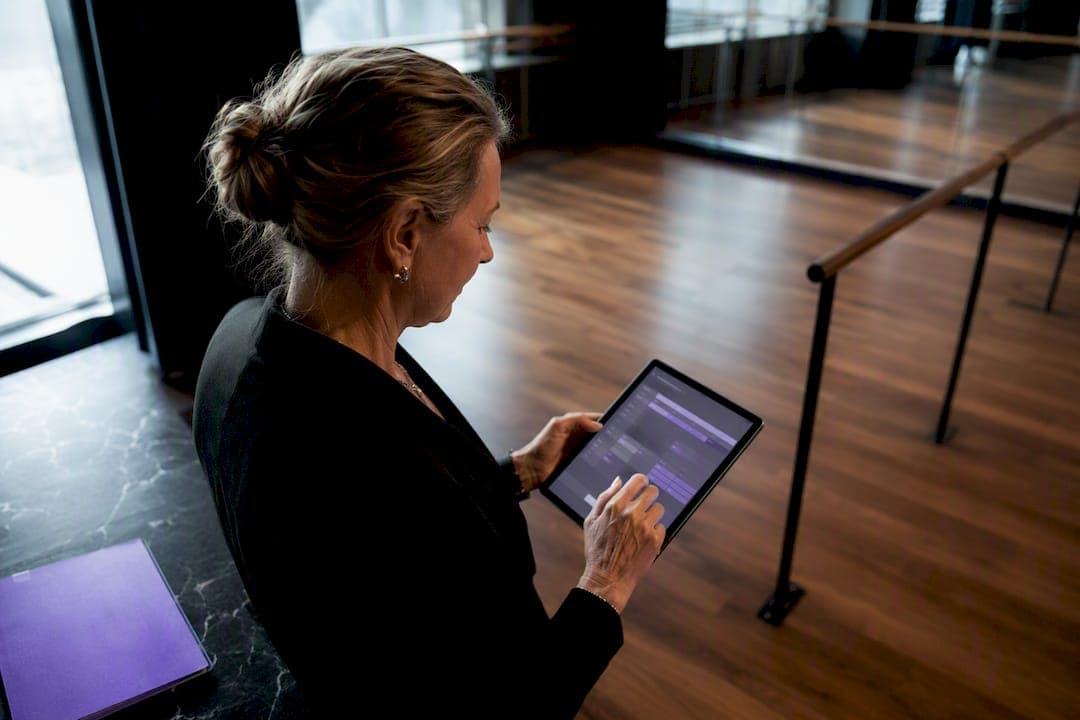
Review the week's entries against attendance, batch-approve anything clean, lock the approved records, then export straight to payroll. That four-step routine, run on a consistent schedule, closes most of the gaps that cause late or incorrect paychecks. A studio-focused platform like Studioflare adds an audit trail and a payroll-ready export on top of it, so managers aren't rebuilding hours from memory every pay period.
TL;DR:
- Automated weekly submission deadlines and clear entry labels significantly reduce approval delays caused by inconsistent instructor habits.
- Linking class schedules and attendance data within the platform helps detect discrepancies before approval, preventing payroll errors.
- Locking and audit trail features ensure data integrity and compliance, reducing errors and rework during payroll processing.
- Supporting features like approver roles, reminders, and export formats tailored to payroll systems streamline the approval and export process.
- Using a platform like Studioflare integrates attendance, scheduling, and payroll, minimizing manual reconciliation and error correction.
Table of Contents
- How Do You Approve Dance Studio Timesheets Step by Step?
- What Policies Reduce Timesheet Approval Friction?
- Which Features Should a Timesheet Tool Actually Have?
- How Do Approved Timesheets Flow Into Payroll?
- How Do You Fix Common Timesheet Approval Problems?
- How Studioflare Handles Timesheet Approvals for Dance Studios
- A Manager's Payday Checklist
- Run Your Studio's Payroll Without the Spreadsheet Reconciliation
- Sources
How Do You Approve Dance Studio Timesheets Step by Step?
Approving timesheets isn't complicated, but skipping a step is exactly how a studio ends up paying an instructor for a class that got canceled. The standard approve-a-timesheet sequence used across most workforce software (select the pay period, review entries, check and approve, then export or lock) holds up well for dance studios, with a few studio-specific checks layered in.
- Cross-check attendance first. Before you approve anything, compare submitted hours against class rosters, check-in logs, and private-lesson bookings. If an instructor logged three hours but the schedule shows two classes, that's a five-minute conversation now instead of a payroll correction later.
- Filter, then batch-approve. Sort timesheets by status (clean, flagged, pending) and approve the clean batch in one action. Reserve individual review for anything with overtime, a rate change, or a manual edit.
- Flag exceptions before they reach payroll. If hours look off, kick the entry back to the instructor with a note rather than approving now and fixing it later. Corrections are cheaper before approval than after.
- Lock entries once approved. Locking prevents edits after the fact and preserves the approval as an audit-ready record, which matters the moment a paycheck gets questioned.
- Export what payroll actually needs. That means worker ID, date, hours, pay rate, and a class or job tag, formatted for whatever payroll system receives it.
- Set rules for mobile approvals. Approving from a phone between classes is fine for routine hours. Anything with a discrepancy, an overtime flag, or a new rate should wait until you're at a desk with the full attendance record in front of you.
Follow that order and the review step catches most errors before they ever reach the export.
What Policies Reduce Timesheet Approval Friction?
Most approval headaches trace back to inconsistent submission habits, not bad software. A few standing rules fix that.
- Set a fixed weekly submission deadline (Sunday night, for instance) and automate reminders so instructors aren't relying on memory.
- Name a primary approver and a backup, with clear rules for temporary delegation during vacations or illness.
- Require standardized entry labels: class code, private lesson, or prep/cleanup time, so you're not guessing what a vague entry means.
- Set a retention window for locked records, and define upfront how disputes get handled once a payroll run has already gone out.
Pro Tip: Build your naming convention into the timesheet template itself, not a separate memo instructors have to remember. If the dropdown only offers "Class," "Private Lesson," and "Prep/Cleanup," nobody can submit something ambiguous.
These four habits do more to cut approval time than any single piece of software. They just require someone to enforce them consistently for a few pay cycles until they become routine.
Which Features Should a Timesheet Tool Actually Have?
Before comparing tools, get specific about what a dance studio needs that a generic time clock doesn't. The feature list below is what separates software built for hourly retail shifts from something that actually understands class schedules and private lessons.
- Approver roles with permission tiers, so a front desk lead can review but not lock, while the owner or studio director can export to payroll.
- An audit trail and locking mechanism that records who submitted, edited, and approved each entry, and prevents changes after approval.
- Session and class linking, so a submitted timesheet can be checked against the actual class or private lesson it corresponds to.
- Mobile approval support for managers who need to clear routine entries between classes rather than at a desktop.
- Automated reminders that catch late submissions before they become a Friday-afternoon scramble.
- Export formats that match your payroll provider, whether that's a CSV, a direct payroll API, or a QuickBooks or Xero integration.
A lightweight time-tracking app can work for a solo instructor or a very small studio. Once you're running multiple locations, mixing W-2 staff with 1099 contractors, or trying to reconcile time against attendance and registration data, a studio management platform that ties scheduling, attendance, and payroll together saves far more time than a standalone app. Standalone time-clock tools like Kloqk cover the mobile-approval basics well for very small operations, but they don't connect back to your class rosters.
How Do Approved Timesheets Flow Into Payroll?
Once entries are locked, payroll needs a clean, predictable export. At minimum that means worker ID, date, hours worked, pay rate, and a job or class tag, formatted the way your payroll provider expects it.
Before you run payroll, confirm worker classification. Studios routinely mix W-2 instructors with 1099 contractors teaching private lessons or subbing occasional classes, and getting that classification wrong affects withholding and tax filing. Payroll platforms built for this mix, such as OnPay's dance studio offering, automate federal and state filings for both worker types, which removes a meaningful chunk of manual reconciliation.
- Keep the audit trail intact: submitter, approver, and timestamp for every entry.
- Lock entries the moment they're approved, before export.
- Match your export format to what your payroll provider accepts, whether that's a direct feed or a formatted CSV.
Accuracy at the approval stage is what prevents withholding errors downstream. Studios that automate the review and export steps see fewer manual corrections after the fact than studios doing it by spreadsheet.
How Do You Fix Common Timesheet Approval Problems?
- Missing hours: Cross-check class attendance and private-lesson logs, then ask the instructor for a timestamped correction rather than estimating.
- Edits needed after approval: Never alter a locked entry directly. Document the correction, create an adjustment for the next payroll cycle, and note the reason in the audit trail.
- Clock-in or clock-out errors: Verify against the class schedule before approving, and double-check for duplicate entries that could trigger double pay.
- Temporary delegation: Appoint a backup approver with limited permissions in writing, and remove access once the primary approver returns.
How Studioflare Handles Timesheet Approvals for Dance Studios
Studioflare ties class registrations, attendance, and staff time entries together, so an approver can see whether logged hours match an actual scheduled class or private lesson without switching between systems. That linkage is what catches most discrepancies before they ever reach an approval screen.
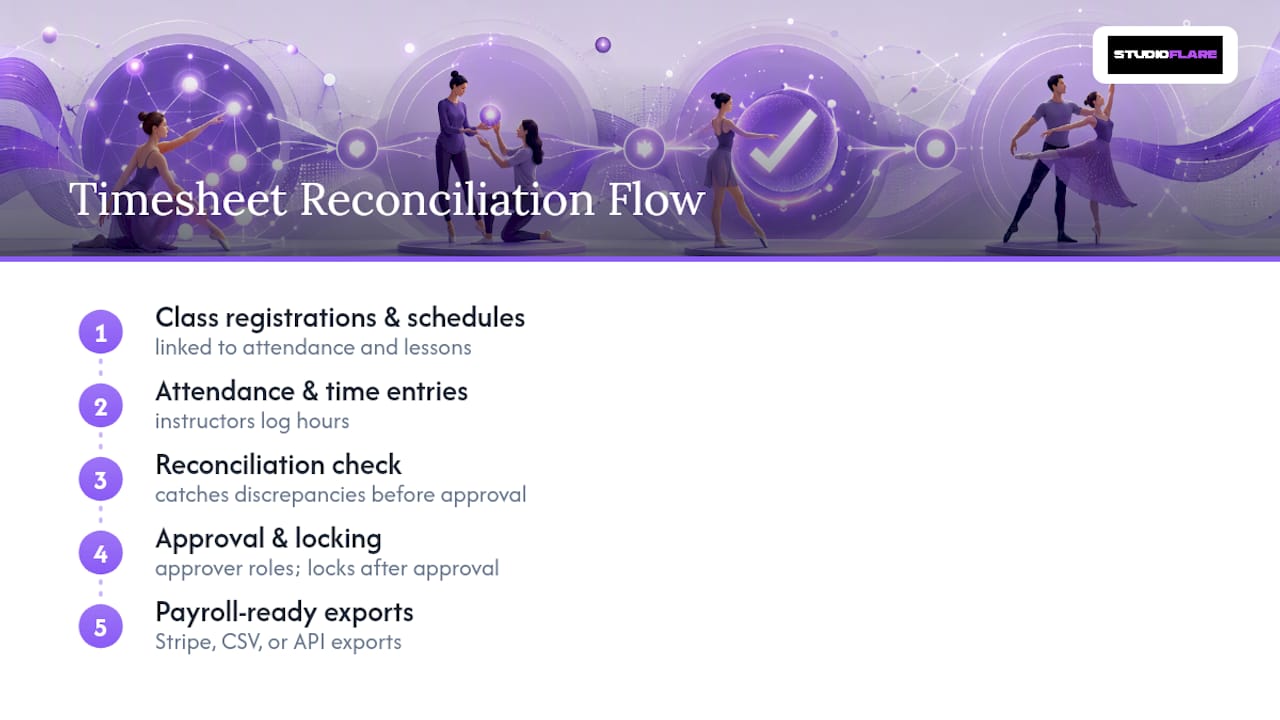
The platform includes approver roles, automated submission reminders, locking after approval, and payroll-ready exports through Stripe, CSV, or API, plus an AI assistant that can answer quick questions like "how many hours did instructor X log this week" without pulling a manual report. For studios running multiple instructors across varying schedules, that reconciliation step is where most of the manual work usually happens.
A Manager's Payday Checklist
The night before payroll, I lock the last pay cycle's entries, export the report, and confirm every rate and worker classification is current. Then I run a quick headcount against expected class hours to catch anything that slipped through. A dashboard that already links attendance to time entries, the kind Studioflare builds in, cuts that check from twenty minutes to five.
— StudioFlare Team
Run Your Studio's Payroll Without the Spreadsheet Reconciliation
Everything covered here (attendance-linked review, batch approval, locked audit trails, and payroll-ready exports) is what Studioflare builds directly into a studio's daily workflow instead of leaving it to a separate app.
Session and class data feed straight into time entries, so an instructor's logged hours already match the schedule before you ever open the approval screen. Approver roles, automated reminders, and locking are built in, and exports go straight to payroll through Stripe, CSV, or API rather than a manual reformat. The AI assistant can answer quick staffing and payment questions on the spot, which matters most during the week payroll runs. If you're still reconciling attendance and time entries by hand, start a trial through Studioflare's studio management platform and see what a linked system looks like for your next pay cycle. Studios weighing a switch from another system can also compare features on the Mindbody alternative page before signing up.
Sources
- Time tracking software built for dance instructors — ClickUp
- Payroll software built for dance studios | OnPay
- Approve a Timesheet — Procore Support