
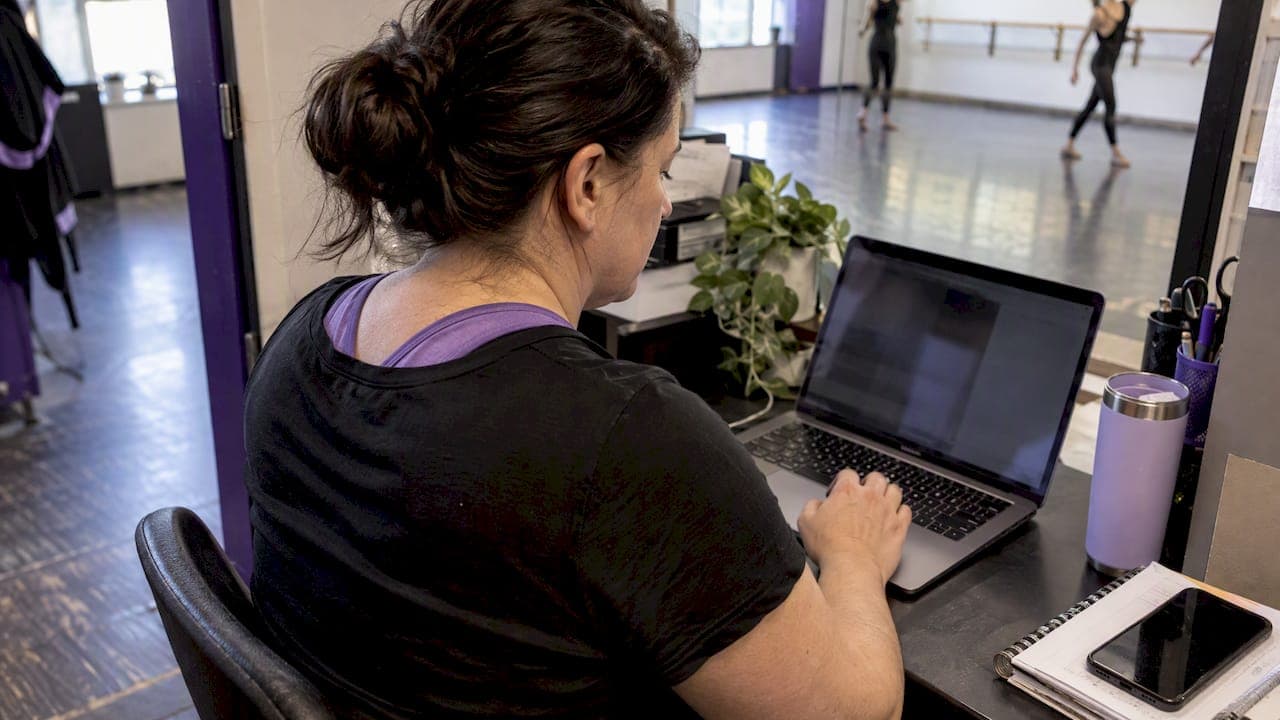
You can move a dance studio from one management system to another in a few weeks, and parents will barely notice, if you do three things in order: export everything while you still have access, decide how recurring payments will carry over, and cut over at a natural break in your calendar. This guide walks through each step for studios leaving a long-established all-in-one platform or an older system that has started to feel heavy.
We built StudioFlare for dance studios only, so we see the same switching problems again and again. Most are avoidable with a plan.
TL;DR
- Export students, families, class rosters, balances, attendance and waivers before you do anything else, and keep a copy outside the old system.
- Card-on-file data does not move by spreadsheet. Plan the payment handoff with your processor, and never store card numbers or security codes in a file yourself.
- Switch between sessions or after a recital, not in the middle of one. Summer and January are the usual windows.
- Run both systems side by side for one billing cycle, then cancel the old one only after a clean first tuition run.
- StudioFlare costs $29 per month on Starter or $49 per month on Pro, plus $1 per active student per month, with no setup fee and no contract.
Table of Contents
- Why studios leave in the first place
- Before you start: define what a good switch looks like
- Step 1: Export everything while you still have access
- Step 2: Plan the payment handoff
- Step 3: Choose the right moment
- Step 4: Set up the new system in parallel
- Step 5: Tell parents what is changing and why it helps them
- What to compare when you choose the new platform
- Our view: what a switch should feel like
- Try it with your own data before you commit
- Common mistakes when switching
- A short pre-cutover checklist
- FAQ
- Sources
Why studios leave in the first place
Nobody changes software for fun. In conversations with studio owners, the reasons cluster into a few groups:
- Cost that grows with your roster. Pricing tied to total students, including those who left two years ago, makes every spring registration push more expensive.
- Payment friction. Limited processor choices or fees you cannot negotiate eat into thin margins.
- Tools that need workarounds. If you still run a spreadsheet for payroll, a group text for reminders and a separate video app for online classes, the software is not doing its job.
- A parent experience that generates emails. If parents cannot see balances, sign waivers or update a card on their own, your front desk does it for them.
- A generic fit. Software built for gyms, martial arts and yoga treats costumes, recitals and private lessons as afterthoughts.
If two or three of these sound familiar, switching is likely worth the effort. If your only complaint is one missing report, ask your current vendor first. A move is a project, and it should buy you something real.
Before you start: define what a good switch looks like
Write down, on one page, what must be true on the first day parents use the new system:
- Every active student is enrolled in the right classes.
- Every family has the right balance and the right next billing date.
- Every signed waiver is still on file or is re-collected.
- Parents can log in and understand where to go.
- Teachers can take attendance on their phones.
This list becomes your acceptance test. Anything not on it can wait until week three.
Step 1: Export everything while you still have access
This is the step studios regret skipping. Log in to your current system and download everything it will give you, in whatever format it offers. Then save the files somewhere that is not the old platform: a shared drive with limited access works.
At a minimum, export:
- Student records: names, birthdates, grades or ages, medical and emergency notes.
- Family and guardian records: contact details, authorized pickup, communication preferences.
- Class and session data: class names, levels, days, times, rooms, teachers, capacities.
- Enrollments: which student is in which class, with start dates and any drops.
- Account balances and ledgers: open balances, credits, tuition plans, discounts and family caps.
- Attendance history: useful for placement decisions and for answering "was she here that week?" disputes.
- Waivers and forms: the signed copies, as PDFs if possible, plus the date each was signed.
- Staff data: pay rates, hours and any payroll history you need for year-end.
- Reports you rely on: revenue by month, enrollment by class, aging receivables. Save them as they look today so you can compare totals later.
If an export is missing something, ask your current vendor's support team for it in writing now, while you are still a paying customer. Vendors are far more responsive before you cancel.
Clean the data before it moves
A migration is the cheapest moment you will ever have to tidy your records. Before importing anywhere:
- Merge duplicate families (the same parent entered twice with different emails).
- Archive students who have not attended in over a year instead of carrying them forward.
- Standardize phone number formats so bulk texts reach people.
- Fix class names. "Tue Ballet 2 (new)" will confuse parents in a new portal.
This cleanup also lowers your bill. Because we charge $1 per active student per month rather than for historical records, an archive of former students costs you nothing on StudioFlare, but only if you do not mark them active when you import.
Step 2: Plan the payment handoff
Tuition billing is where a switch can go wrong in a way parents notice. Families expect their autopay to keep working, and they do not want to be charged twice.
Card data does not travel in a spreadsheet
Never put card numbers in a file to move them. Payment card data is regulated by the PCI Security Standards Council, and its guidance is plain: card verification codes must not be stored after authorization, even for card-on-file or recurring payments. The Federal Trade Commission gives the same direction from the business side: keep only the sensitive information you actually need and dispose of the rest. A spreadsheet of cards on a front-desk laptop is exactly the kind of exposure those documents warn about.
There are two legitimate routes for saved cards:
- Processor-to-processor transfer. Stripe documents how to import payment method data from a previous processor, which is the way card-on-file records are normally moved without anyone handling raw numbers. It is handled between processors, so ask your current processor what it supports and how long it takes. Because StudioFlare bills tuition through Stripe, this is the route to ask about.
- Parents re-enter their cards. It sounds like more work, but for many studios it is the faster, cleaner path. Send a short email with a link to the parent portal, and set a deadline before the first billing date.
Whichever you choose, tell families exactly when the old autopay stops and the new one starts. If you are weighing the bigger picture of online collection, our guide to collecting dance studio payments online covers the setup in detail.
Rebuild your tuition plans
Export your current rules (monthly flat rate, per-class pricing, sibling discounts, registration fees, late fees) and write them out in plain language. Then rebuild them in the new system and test with three or four real families. Studios with several plan types should read our piece on tuition payment plans that keep revenue predictable before they decide what to keep and what to simplify.
If you are in the US and bill on a recurring basis, also check your authorization language. Our article on how to automate tuition and comply with FTC billing rules explains what clear consent and cancellation terms look like.
Watch for double billing
Pick a single cutover date for autopay. On that date, turn off recurring charges in the old system and turn them on in the new one. Do not leave both active "just in case." Check the first run line by line against your saved ledger report.
Step 3: Choose the right moment
The best time to switch is when the fewest things are changing at once.
| Window | Why it works | Watch out for |
|---|---|---|
| Summer break | Low class volume, time to test and train staff | Registration for the next season often opens now, so set up the new system first |
| After the recital | Natural end of a cycle | Costume payments and final fees may still be open |
| January | Fresh-start mindset for parents | Winter session registration overlap |
| Between sessions | Clean enrollment boundary | You still need a plan for balances that carry over |
Avoid the weeks before a recital, during costume ordering, or during main registration. If you are reading this in the middle of a busy season, the practical move is to do the exports and the trial setup now and schedule the real cutover for the next break.
Step 4: Set up the new system in parallel
You do not need to cancel anything to get started. A realistic timeline for a studio of 100 to 400 students looks like this:
Week 1: Build. Create your studio account, add rooms, teachers and class schedules, set your branding and connect Stripe. Decide which forms and waivers parents will complete. The guides on online dance registration and registration forms and policies are useful checklists here.
Week 2: Load and test. Import cleaned students, families and enrollments. Compare counts to your old reports: number of active students, number of families, total open balances. If the numbers do not match, find out why before anything goes to parents.
Week 3: Pilot. Invite a handful of friendly families and one or two teachers. Have teachers take attendance on a phone for a few classes. Our guide to managing dance studio attendance without the clipboard shows what a good check-in flow looks like.
Week 4: Announce and cut over. Email and text all families, with the date, a one-page how-to and a way to ask for help. Switch autopay on the agreed date.
Next billing cycle: Reconcile. Compare the first tuition run to your old ledger, resolve exceptions, then cancel the old subscription.

Do not forget your teachers
Staff adoption decides whether a switch sticks. Instructors need three things: their schedule, a fast way to take attendance, and clear time-clock and payroll tracking. Give them a short walkthrough and a named person to ask. If teachers keep a paper sheet "just for now," you will be reconciling two sources for months.
Step 5: Tell parents what is changing and why it helps them
Parents do not care which software you use. They care about what they have to do. Keep the message short:
- What is changing: you are moving to a new portal on a specific date.
- What they need to do: log in once, check their students' classes, confirm a payment method if required.
- What they gain: one place to see balances, sign forms, get messages and, for studios that offer it, watch class livestreams.
- Whom to contact: one email address or phone number.
Send it twice, a week before and on the day. Use bulk texting for the reminder, since many families will not open the email.
What to compare when you choose the new platform
Before you commit, run each candidate through the same short list. Describe your needs by type, not by brand name, and ask each vendor to show you, not tell you.
| Question | What good looks like |
|---|---|
| Is it built for dance? | Recitals, costumes, levels, private lessons and multi-class discounts handled natively |
| How is pricing structured? | A published monthly fee, a clear per-student rate, no contract, no setup fee |
| Are you charged for inactive records? | Only active students count |
| Who processes payments? | A well-known processor, with fees you can see before you sign |
| Can parents self-serve? | Registration, payments, waivers and messaging without calling you |
| Can you stream classes? | Built in, tied to enrollment, not a separate app |
| Can you leave? | Month-to-month, and a clear way to export your data |
The last row matters more than it looks. The reason you are reading this guide is that leaving was harder than it should have been. Choose a system you could leave without a fight. For a deeper look at the cost side, see what dance studio software really costs.
A note on features that sound similar
Many platforms list "communication tools," "online registration" and "reporting." The difference is in the detail. Ask to see how a parent adds a second child to an existing family, how a mid-session drop is prorated, and how a private lesson gets booked and paid. Those three scenarios expose most gaps in a demo.
The same applies to presentation. If you plan to show prospective families your space online, a virtual tour tool built for schools is worth a look alongside your management system, since a good tour and a good registration flow work as a pair.
Our view: what a switch should feel like
We have one strong opinion about studio software: it should shrink your administrative work, not rearrange it. A dance studio owner is usually also the front desk, the bookkeeper and the person answering parent texts at 9 p.m. Software that adds screens without removing tasks is not progress.
That is why StudioFlare is built only for dance studios, not for gyms or wellness centers. Registrations, tuition billing through Stripe, attendance and check-in, staff time clock and payroll, digital waivers, costume management and private lesson booking sit in one place. Built-in livestreaming ties into registration and access control, so only enrolled families see the class they paid for. An AI assistant answers common questions about classes and payments, so the same ten questions stop landing in your inbox.

We also think pricing should be easy to explain to a business partner in one sentence: a flat monthly plan, plus a dollar for each active student. No annual contract, no setup fee, and no charge for students who left years ago.
If you take one thing from a switch, make it this: do the migration as a cleanup. Leave behind the duplicate families, the dead classes and the manual workarounds.
— StudioFlare Team
Try it with your own data before you commit
StudioFlare has two plans: Starter at $29 per month and Pro at $49 per month, each with $1 per active student per month on top. Livestreaming is an add-on, and we do not publish a price for it on our site, so ask when you set up. There is no setup fee and no contract.
The quickest way to judge fit is to export a single class and a handful of families from your current system, then create your studio on StudioFlare and see how the registration and billing flow handles them. You can review plans and features on our pricing section first. If you are coming from a different kind of system, we have pages for studios leaving a studio-specific alternative or moving off a generalist booking platform.
Common mistakes when switching
- Cancelling the old account too early. Keep it until one full billing cycle has run cleanly.
- Importing every record ever created. Archive inactive students. It keeps reports honest and keeps per-student costs down.
- Switching mid-recital. Costumes, fees and rehearsals make everything harder to reconcile.
- Skipping the pilot. Three families and two teachers will find problems that a demo never does.
- Changing prices at the same time. Move your existing pricing first, then adjust it once you trust the numbers.
- Leaving parents to figure it out. A short, repeated message beats a long one sent once.
- Storing card details outside a payment processor. Follow the PCI and FTC guidance and keep cards where they belong.
A short pre-cutover checklist
Print this and tick each line before you turn on autopay:
- Exports saved in two places, outside the old system.
- Active student count and family count match the old reports.
- Open balances match to the dollar.
- Tuition plans rebuilt and tested with sample families.
- Stripe connected and a test payment completed.
- Waivers either carried over as PDFs or scheduled for re-signing.
- Teachers have logged in and taken attendance at least once.
- Parent announcement sent, with a support contact.
- Old autopay turn-off date and new turn-on date written down.
FAQ
How long does it take to switch dance studio software?
Most studios with a few hundred students can finish in about four weeks of part-time work: one week to build, one to load and test, one to pilot and one to announce and cut over. Larger studios or those with complex tuition rules should allow longer. The timing matters less than the season you pick.
Can I move my families' saved cards?
Not by spreadsheet, and you should never store full card numbers or security codes in a file. Card data can be transferred between payment processors, and Stripe describes its process in its payment method import documentation. If that is not practical, ask parents to re-enter cards through the portal.
Will I lose my attendance and billing history?
Only if you fail to export it. Download attendance, ledgers and signed waivers before cancelling and keep them in secure storage. Whether each record is imported into the new system or simply archived is a decision to make with your new vendor.
Do I have to cancel my old software before I start?
No, and you should not. Run both in parallel until one full billing cycle has been reconciled. Then cancel, ideally with written confirmation of your final data export.
What will StudioFlare cost my studio?
Starter is $29 per month and Pro is $49 per month, plus $1 per active student per month. There is no setup fee and no contract, and livestreaming has no published price. See our pricing for the current details.
Sources
- PCI Security Standards Council: Can card verification codes be stored for card-on-file or recurring transactions?
- Federal Trade Commission: Protecting Personal Information, A Guide for Business
- Stripe documentation: Import payment method data