
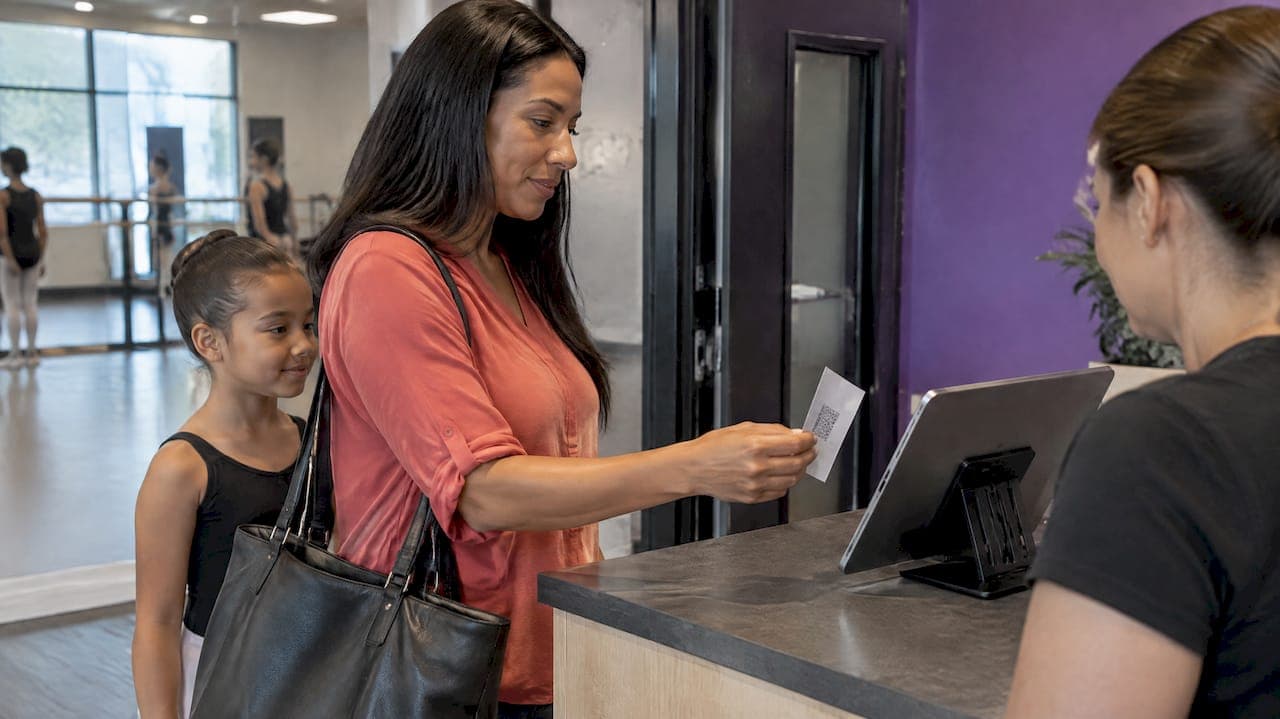
Barcode and QR check-in works at a dance studio like this: every student gets a unique code, on a card, a key tag or a parent's phone. Someone scans it at the front desk or a tablet kiosk, and the scan marks that dancer present in the right class. It replaces the clipboard, takes a few seconds per student, and leaves a record you can search later. The same logic applies to instructors, who clock in and out so their hours are on file for payroll. This guide covers what you need, how to run the first week, what to do when scans fail, and how to choose software that handles it all.
TL;DR
- A scan-based check-in needs a unique code per student, a tablet or computer at the door, a scanner or camera, and software that ties each scan to a class roster.
- Plan for the failures: forgotten cards, dead phones, late arrivals and young dancers. A manual fallback keeps the front desk moving.
- Student attendance and instructor time clocks are different records. Federal wage law covers hours worked by non-exempt employees, not dancer check-ins.
- Pick a system where attendance, billing, parent messaging and payroll live in one place, so you stop re-typing the same data.
- Keep a printed roster for each class for emergencies, whatever your digital system does.
Table of Contents
- Why studios move from clipboards to scanning
- Barcode or QR code: which should you use?
- What you need to set it up
- Rolling it out in your studio
- Handling the real-world problems
- Students are one record, instructors are another
- How attendance data helps beyond the door
- What to check when you choose a system
- Where StudioFlare fits
- Our perspective
- FAQ
- Sources
Why studios move from clipboards to scanning
A paper sign-in sheet fails in predictable ways. Parents sign for the wrong child. Teachers lose the sheet. Someone has to type the data into a spreadsheet on Sunday night, and by then nobody remembers who actually came to the Tuesday tap class.
Scanning fixes three things at once:
- Speed at the door. A scan takes about as long as a beep. A line of twelve juniors before a 4:30 class clears quickly instead of everyone crowding a clipboard.
- Accuracy. The system records who was scanned and when. There is no handwriting to decipher, and a dancer cannot be marked present in a class they are not enrolled in without someone noticing.
- Usable data. Once attendance is digital, you can see which classes run half empty, which students have drifted away and who is due for a conversation about re-enrolling.
If you want the broader picture of running attendance without paper, our guide on how to manage dance studio attendance without the clipboard walks through the full routine. This article focuses on the scan itself.
Barcode or QR code: which should you use?
Both do the same job: they store a short identifier that the software looks up. The difference is in how they are read.
| Barcode (1D) | QR code (2D) | |
|---|---|---|
| What it holds | A short number | A number, link or short text |
| Best medium | Printed card, key tag, wristband | Printed card, or on a phone screen |
| Reader | Dedicated scanner | Camera on a tablet or phone, or a 2D scanner |
| Weak spot | Poor print quality, scratches | Glare on a phone screen |
| Good for | Front desk with a handheld scanner | Tablet kiosks and parents arriving with phones |
For most studios, QR is the easier start. A parent can keep the code in their phone wallet or a photo album, so a forgotten card is not a lost class. If you want physical cards for younger dancers, print the same code on a lanyard tag or a dance bag tag.
One practical point: check what your software can read before you buy hardware. Some systems read only certain code types, and some scanners read only 1D codes. Scanners that read 2D codes handle both.
What you need to set it up
The equipment list is short.
- A check-in device. A tablet on a stand or a computer at the front desk. Put it where parents naturally walk, not around a corner.
- A reader. The tablet's camera works for QR codes. A dedicated handheld scanner is faster at a busy desk. If you connect a scanner to a tablet, confirm the connection method (Bluetooth or cable) works with your tablet before ordering.
- A code for every student. Generated by your software and linked to the student's profile, not invented by hand.
- Clean roster data. Every student enrolled in the correct classes, with sibling accounts linked to one parent. Scanning exposes bad data immediately: a dancer who is not on the roster simply will not check in.
- Reliable Wi-Fi. If the studio signal is weak in the lobby, fix it before launch. A kiosk that stalls on a scan frustrates parents more than a clipboard ever did.
- A printer. For cards, or for the printed rosters you will keep as a backup.
Rolling it out in your studio
Do not switch everything on the first day of the season. A phased start catches problems while they are small.
Week before: clean the roster and issue codes
Make sure each student's profile is correct: name, parent contact, classes. Generate the codes, and send parents an email or text explaining where to find theirs and how to scan. Two sentences and a screenshot are enough: "Open your code, hold it up to the tablet, wait for the green check."
First week: scan and keep the clipboard
Run both for one week. The paper sheet is your safety net while parents learn the habit. Compare the two at the end of each day. Mismatches tell you where the process leaks: a code that will not scan, a class set up under the wrong name, a family with two accounts.
Second week: retire the paper
Once the discrepancies are gone, drop the sign-in sheet. Keep the printed roster for emergencies (more on that below).
Teach the front desk and the teachers
The person at the desk should know three things: how to look a student up by name, how to mark someone present manually, and how to add a drop-in. Teachers should know where to see their live class list. If your studio uses separate classroom check-in by teachers on a tablet, decide who is responsible when the desk is unstaffed.
Handling the real-world problems
The scan is the easy part. How you handle exceptions decides whether parents like the system.
Forgotten card or dead phone. Look the student up by name and check them in manually. Do not turn anyone away over a missing code. Many studios keep a short list of parent phone numbers or last names at the desk for quick lookup.
Late arrivals. Decide in advance what counts as late and whether the system should record arrival time. A recorded time makes it easy to see patterns, such as a student who is always ten minutes late because school pickup runs long.
Young dancers. Three-year-olds do not scan themselves. The parent or an assistant does it. Make the rule explicit: the adult scans at drop-off, and the teacher confirms heads in the room.
Parents who do not want to use a phone. Give them a card on a key ring. Some families prefer to have a physical object, and it costs you pennies.
Scan, but the dancer is not in that class. This is useful information. It might mean a make-up class, a trial, or a mistake. Have a clear rule for make-ups so the desk does not improvise each time.
Emergency headcounts. A digital record is only useful if the system and the internet are working. Keep a printed roster for each class, updated regularly, and ask your local fire marshal what they expect studios to have on hand for evacuations. Teachers should know where it lives.

Students are one record, instructors are another
Studio owners searching for a time clock often mean two different things. One is student attendance, which tells you who came to class. The other is staff time, which tells you how many hours each instructor and front desk worker put in. Mixing the two causes confusion in payroll.
What to know on the staff side, for the United States:
- The U.S. Department of Labor says covered employers must keep basic records for each non-exempt worker, including total hours worked, and that time clocks and a particular record format are not required. A digital time clock is a convenient way to meet the requirement, not a legal mandate.
- The same agency's recordkeeping guidance says payroll records must be kept for at least three years, and supporting records such as time cards for at least two years.
- State rules can be stricter, so confirm with your state labor department or your accountant.
A question that comes up often in studios: should teacher hours be only the minutes in front of students? Not necessarily. Setup, warm-ups, rehearsals, costume fittings, recital weekends and staff meetings can all be work time. Whether a particular person is exempt or non-exempt, or an employee or an independent contractor, is a classification question for your accountant or an employment attorney, not something software decides for you.
If you are building this process, two of our guides go deeper: setting up dance instructor time tracking in one week and the six rules every dance studio time clock policy needs. Once hours are collected, a four-step timesheet approval workflow keeps payroll clean.
A sensible time clock policy in brief
- Staff clock in when they start work, not when the first student arrives.
- Corrections go through a manager, with a note on why.
- Timesheets are approved on a fixed schedule, before payroll runs.
- Workweek start and end are fixed and written down.
That last point matters. Under federal rules, a workweek is a fixed, recurring period, and overtime is calculated on it, so choose the start day once and keep it.
How attendance data helps beyond the door
Once scans are flowing, the records start paying for themselves.
- Capacity. If a room built for 14 dancers regularly sees six, you can consolidate classes or move one to a smaller room. If it sees 18, you have a safety and comfort problem. Our piece on setting dance class capacity by square footage per dancer helps you decide.
- Retention. A dancer who has missed three weeks in a row deserves a friendly message before the invoice arrives.
- Billing. When attendance, enrollment and tuition live in the same system, you can answer "was my daughter marked present on the 14th?" in seconds instead of searching old sheets.
- Teacher planning. Teachers can see how many students to expect, and plan choreography and costume groups with real numbers.
What to check when you choose a system
Before signing up, run each candidate through this list.
- Code support. Does it generate a QR code or barcode for each student, and does it also allow manual check-in by name?
- Hardware. Does it work on the tablet you already own? Does it need a specific scanner?
- Roster link. Do scans connect to class rosters, so an unenrolled dancer is flagged?
- Parent access. Can parents see their own code and their child's attendance in a portal?
- Staff time clock. Is there a separate clock for instructors, with approvals and exports?
- Billing link. Does attendance sit alongside tuition, registrations and waivers?
- Messaging. Can you text or email a class when a session is cancelled?
- Exports. Can you get your data out, in standard formats, if you ever leave?
- Pricing clarity. Is there a contract, a setup fee, or a charge for former students?
- Migration. If you are leaving a legacy system, will they help bring over students, families, balances and class history?
The last item deserves care. Moving systems mid-season is stressful. Most studios pick a quiet window, such as summer or a holiday break, export student and family data, check it in a spreadsheet for duplicates, import it, and run the old and new systems side by side for a short time before cutting over.
Where StudioFlare fits
StudioFlare is a management platform built only for dance studios. It brings class registration, automated tuition billing through Stripe, attendance and check-in tools, a staff time clock and payroll, digital waivers, bulk SMS, a parent portal and AI-powered data insights into one place, so you are not stitching together spreadsheets and group texts.

Pricing is published on the site: Starter is $29 per month, Pro is $49 per month, and there is a $1 per month charge for each active student. You are charged for active students, not for historical records. There is no setup fee and no contract. Livestreaming has no published price, and SMS and some add-ons are usage-based, so check the pricing section for the current details.
If you are comparing options, we also have pages for studios coming from other large studio software and from fitness-oriented platforms.
Want to see how check-in, billing and payroll fit together for a dance studio? Take a look at StudioFlare and start with the plan that matches your studio size.
Our perspective
Most studio owners we talk to do not wake up wanting a barcode scanner. They want Monday to stop starting with a pile of sign-in sheets and a spreadsheet that does not match the billing.
We built StudioFlare for dance studios only, and that shapes how we think about attendance. A dance studio has recital seasons, costume fees, siblings in different classes, teachers who also work the front desk, and parents who message at 9 p.m. Attendance is not a separate task. It connects to who has paid, who is enrolled, who is on payroll and who needs a reminder.
Our view is that check-in should be quick for parents, forgiving when something goes wrong, and tied to the same record as everything else. That is why we keep attendance and check-in tools, the staff time clock, billing and parent communication in one platform, and why we charge for active students rather than every name that has ever been in your system.
Start small. Get the roster right, scan for a week alongside paper, and expand from there.
StudioFlare Team
FAQ
Do I need a dedicated barcode scanner, or is a tablet camera enough?
For QR codes, a tablet camera is enough at most studios. A handheld scanner makes sense if a long line forms at the desk, since it reads faster and in one motion. Check that any scanner you buy reads the code type your software generates.
Does a dance studio legally need a time clock?
Not under federal law. The Department of Labor says employers must keep records of hours worked for non-exempt employees, but a time clock and a specific format are not required. A digital clock is simply an easy way to keep accurate records, and your state may add its own rules.
What if a parent forgets the code?
Check the student in by name from the roster and carry on. The scan is a convenience, not a gate. If it happens often with the same family, offer a physical card or tag.
How long should we keep attendance and payroll records?
For employee hours, federal guidance calls for payroll records to be kept at least three years and time cards at least two. Student attendance is not covered by those wage rules, so keep it as long as your own policies, insurance and accountant suggest.
Can the same system handle student check-in and instructor hours?
Yes, if the software has both an attendance tool and a staff time clock. Keep them as separate records: student scans tell you who danced, and instructor clock-ins tell you who worked.
Sources
- Fact Sheet #21: Recordkeeping Requirements under the FLSA, U.S. Department of Labor
- FLSA Comprehensive overview, U.S. Department of Labor